Install ESX Legacy with txAdmin
Step-by-step guide to install ESX Legacy on a FiveM server with the official txAdmin recipe, including MariaDB setup, license key and what the recipe installs.
The fastest and most reliable way to install ESX Legacy is the official txAdmin recipe. txAdmin ships with every FiveM server build. The recipe downloads ESX and its dependencies, imports the SQL schema into your database and writes a ready-to-use server.cfg. A fresh install takes about 10 to 15 minutes.
If you cannot or do not want to use txAdmin, follow Manual installation instead.
Before you begin
| Requirement | Notes |
|---|---|
| cfx.re account | Needed to log in to txAdmin and to create a server license key. Sign up at cfx.re. |
| MariaDB | ESX needs a MySQL-compatible database. Install MariaDB and remember the root password you set. |
| Windows or Linux machine | This guide shows Windows. On Linux the txAdmin part is identical. |
| Disk space | Plan for several GB: server build, resources, database and backups. |
| Open port | Players connect on port 30120 (TCP and UDP) by default. |
Do not use XAMPP
XAMPP bundles an old MySQL/MariaDB with defaults meant for local web development. It is a common source of crashes and lost data on FiveM servers. Install MariaDB on its own.
What the recipe installs
The ESX Legacy recipe (recipe.yaml in esx-recipes) runs these tasks in order:
- Downloads the default cfx resources into
resources/[cfx-default]and removes theirchatresource (the server uses the built-in system chat instead). - Downloads
server.cfgand the server iconesxLogo.pngfrom the recipe repository. - Connects to your database and imports
[SQL]/legacy.sqlfromesx_core. - Downloads
esx_coreintoresources/[core]and the official addons intoresources/[esx_addons]. - Downloads standalone resources into
resources/[standalone]:oxmysql,ox_lib,pma-voice,bob74_ipl,sd-phoneandsd-phone-props. - Enables OneSync (the recipe sets
$onesync: on).
The result is a complete roleplay server with jobs, shops, banking, housing, vehicles and a phone.
Installation
Download the server build
Download the latest FiveM server build ("artifacts") for Windows. You can use the official build list at runtime.fivem.net or the community mirror artifacts.jgscripts.com, which shows known-broken builds.
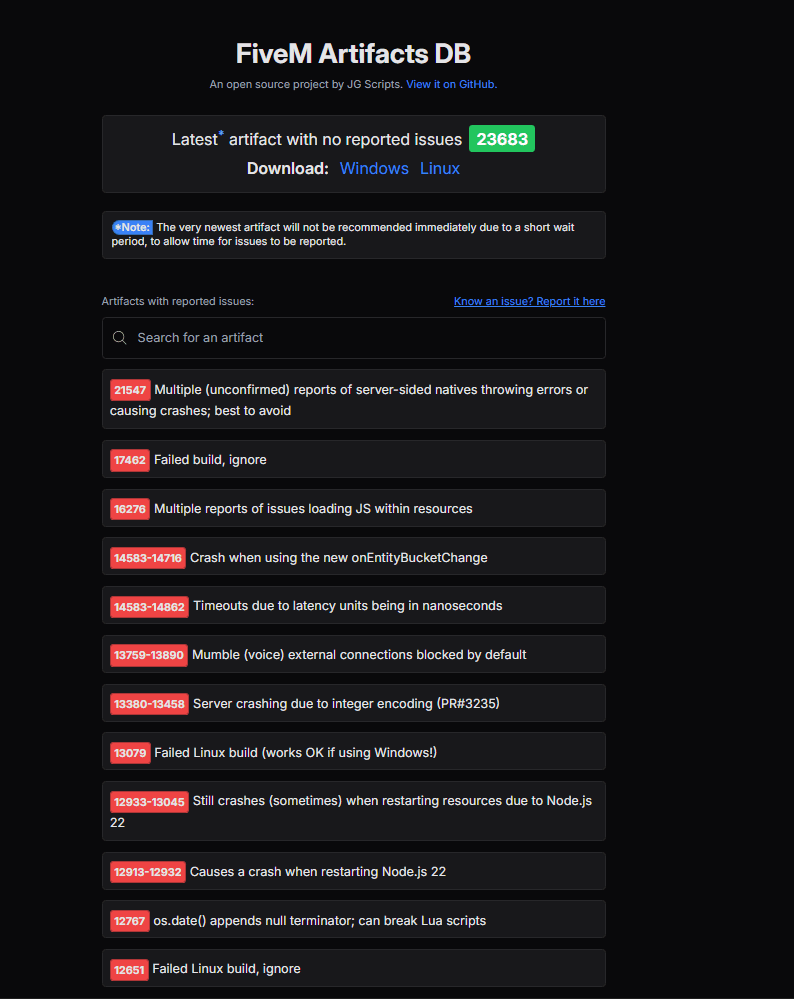
On artifacts.jgscripts.com, click Windows to download the recommended build.

Extract the archive to a permanent folder, for example C:\FXServer\server.
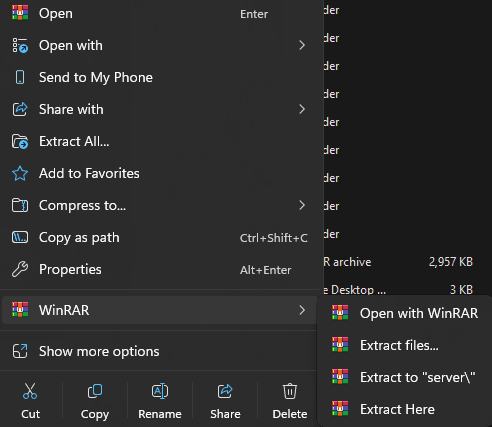
Pick the final location now. txAdmin stores absolute paths, so moving the folder later means updating them by hand. Avoid OneDrive or other synced folders.
Start FXServer and link your account
Open the extracted folder and run FXServer.exe. If your antivirus flags it, add an exception for the server folder.

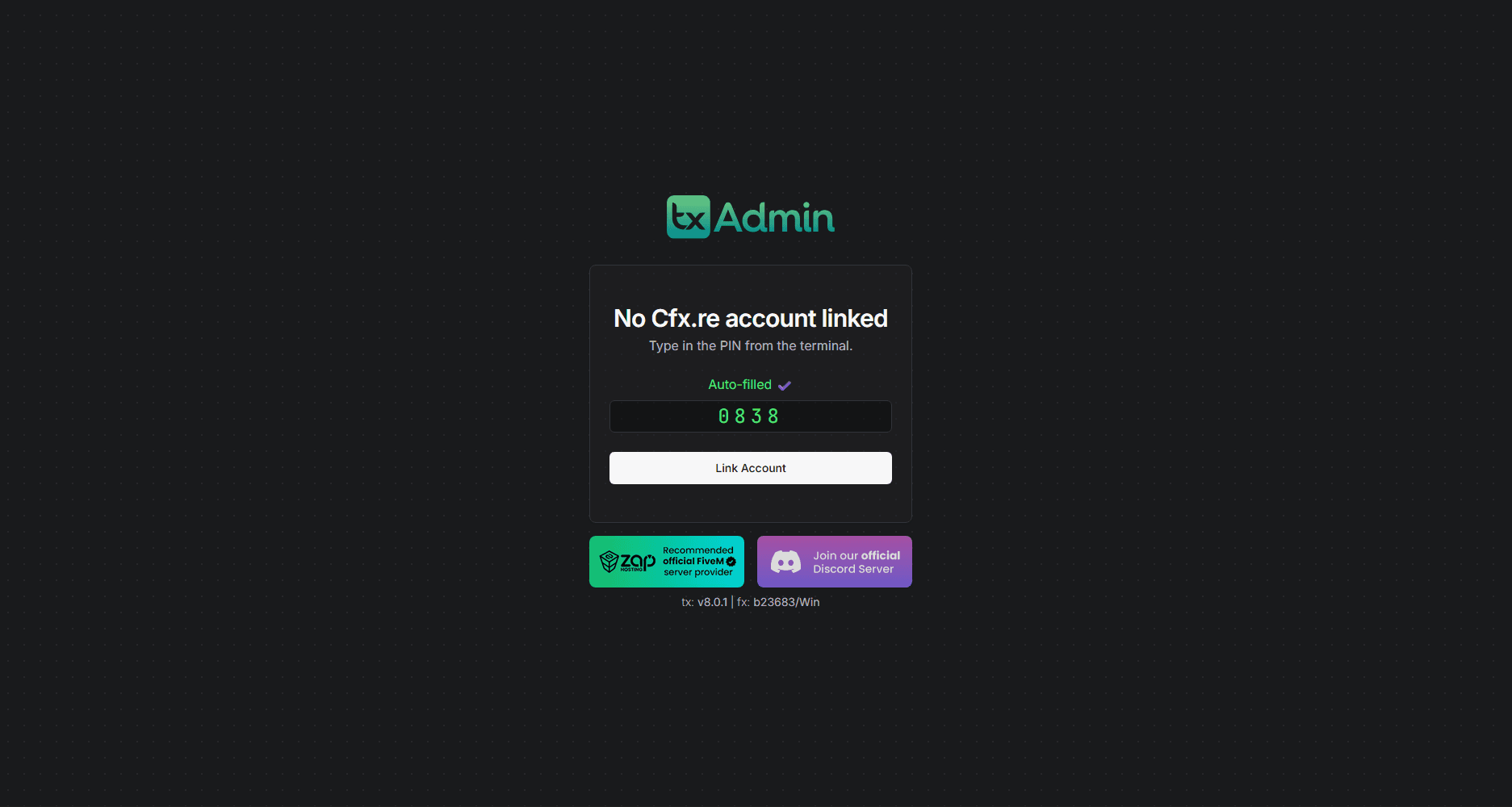
A browser tab opens with the txAdmin setup page. If it does not, the console prints the URL (usually http://localhost:40120) and a PIN. Click Link Account and log in with your cfx.re account.
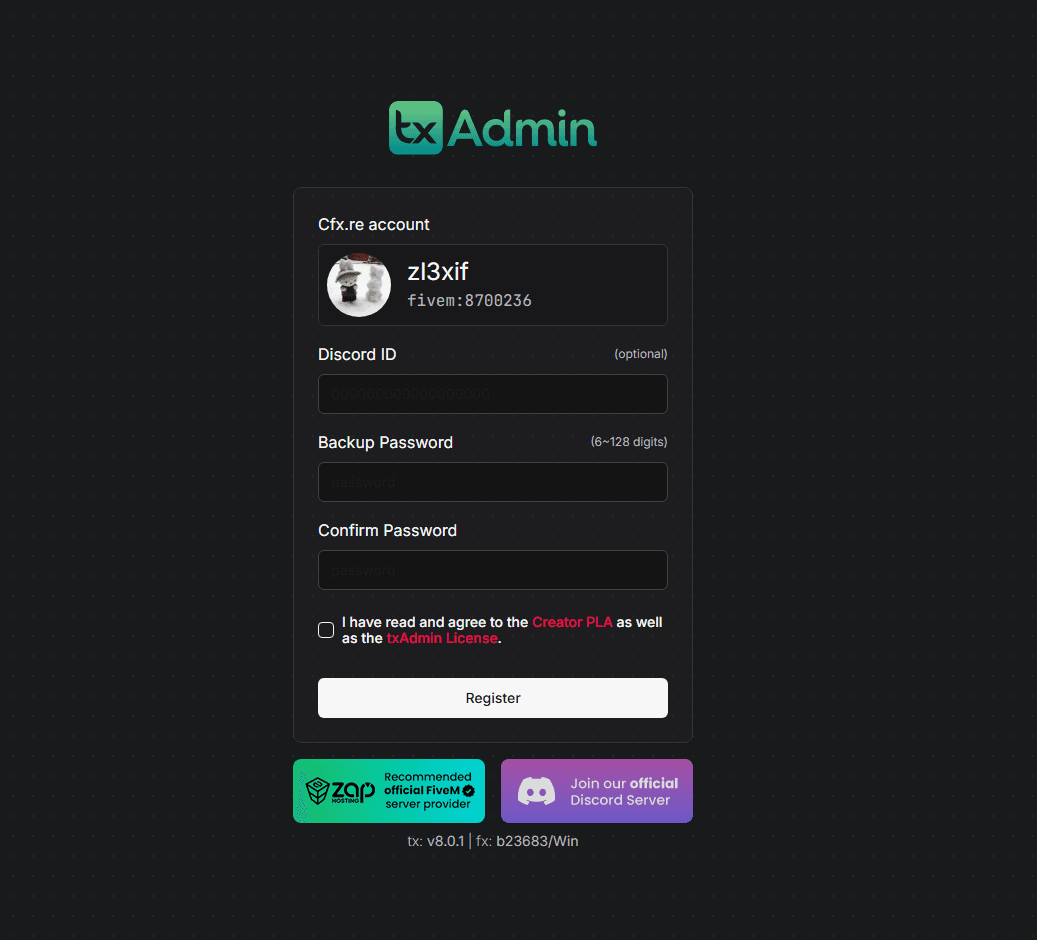
Create a backup password. You need it if the cfx.re login is ever unavailable.
Name the server and pick the ESX recipe
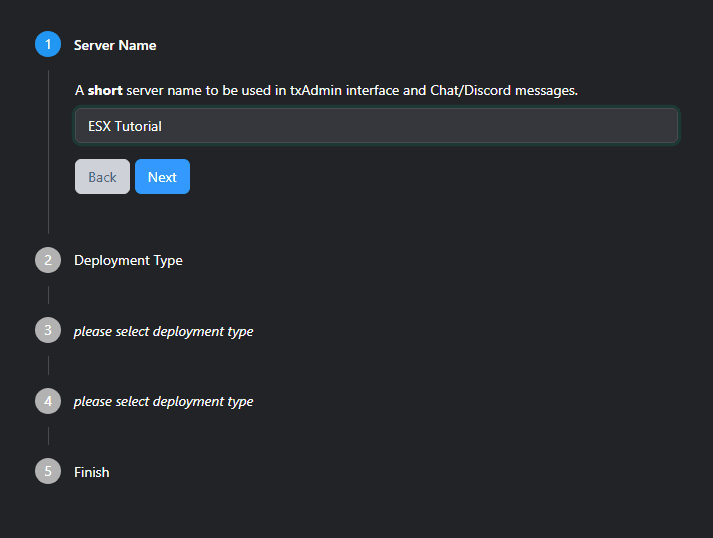
Enter a server name. It shows up in the FiveM server list and in sv_hostname.
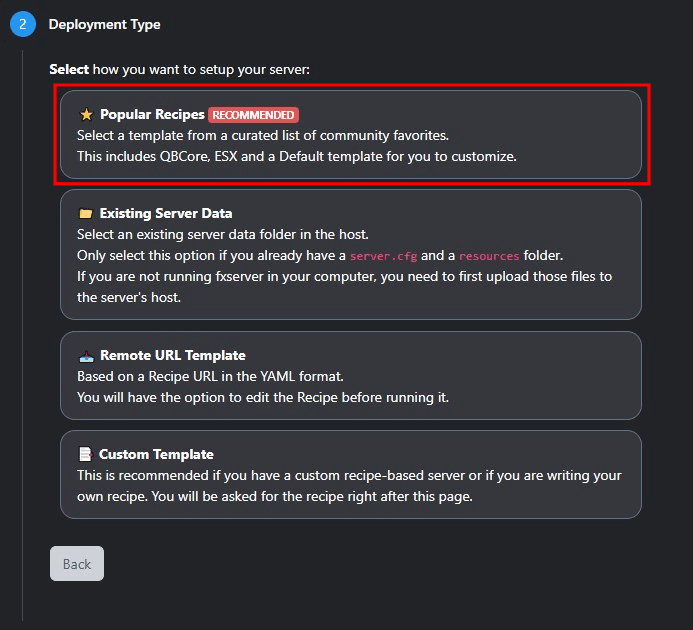
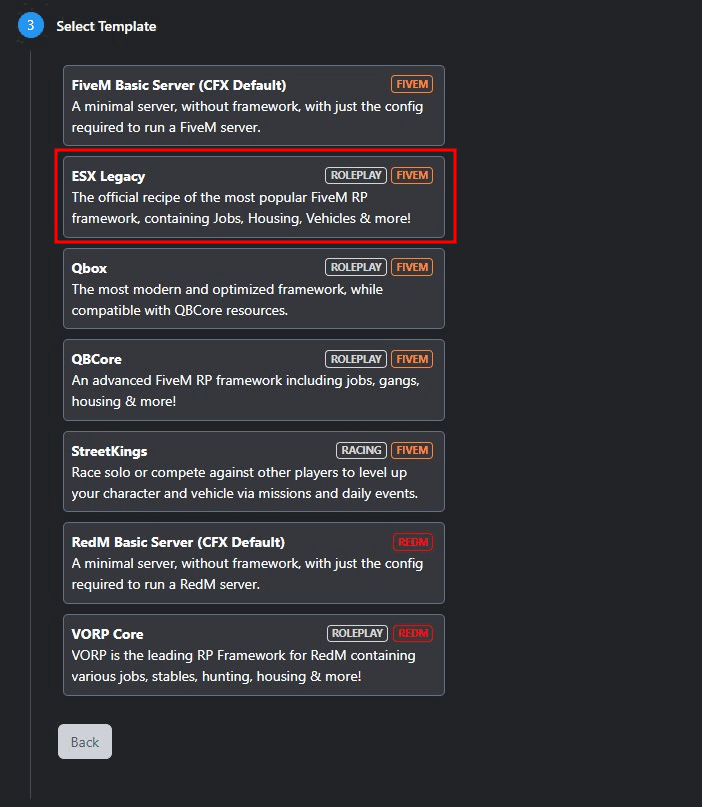
As deployment type choose Popular Recipes, then select ESX Legacy.
Choose the data folder
txAdmin asks where to put the server data (resources, server.cfg, cache). Change the default to a short dedicated path such as C:\FXServer\esx-server.
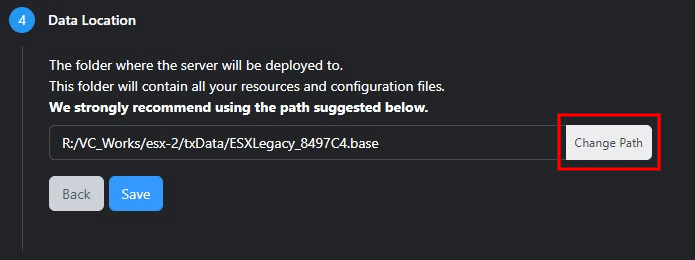
Create the folder in Explorer first if txAdmin complains that it does not exist, then save the path.
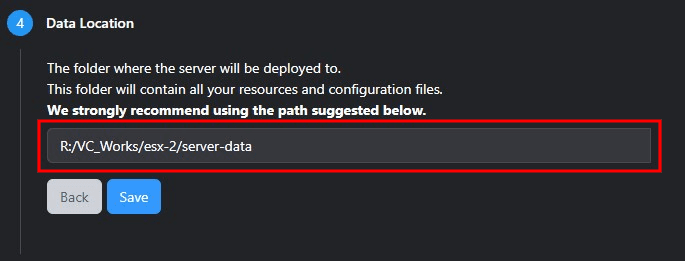
Keep the server build (FXServer.exe) and the server data in separate folders. Then you can replace the build during an update without touching your resources.
Open the recipe deployer and enter the database
Continue to the Recipe Deployer.

txAdmin asks for your database connection. Make sure the MariaDB service is running, then enter:
| Field | Typical value |
|---|---|
| Host | localhost |
| Port | 3306 |
| Username | root (or a dedicated user, see below) |
| Password | the password you chose when installing MariaDB |
| Database name | for example es_extended or esx_legacy |
txAdmin builds the mysql_connection_string from these values and writes it into server.cfg.
Add your license key
On the Review Recipe page, paste a server license key.
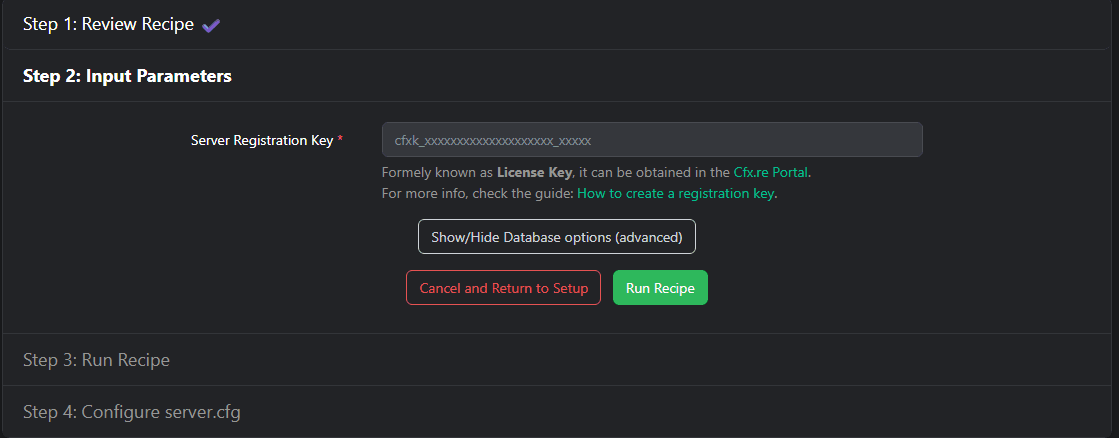
Create a key at portal.cfx.re with the same cfx.re account. One key per server.
Keep the key private
The license key identifies your server. Never post it in screenshots, support tickets or public repositories. If it leaks, revoke it on the portal and create a new one.
Run the recipe
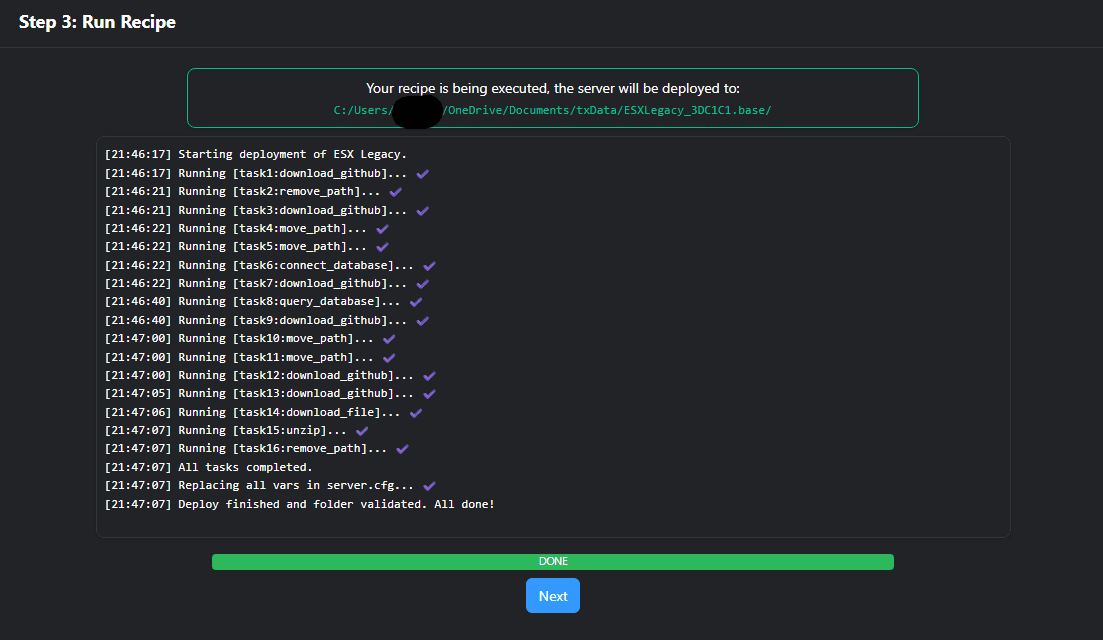
Click Run Recipe. The download of the addons can take several minutes. When it finishes, txAdmin shows the generated server.cfg. Check the values (max players, locale, tags), then click Next and start the server.
After the installation
- Watch the first start. The console should show
oxmysqlconnecting,es_extendedstarting and the ESX migrations running. A message likeServer restart required!after migrations is expected on the first start; restart the server once. - Join your server. In FiveM press F8 and type
connect localhost:30120. You should see the ESX loading screen, then character creation fromesx_multicharacterandesx_identity. - Make yourself admin. txAdmin adds your account as a master admin in
server.cfg. To get the ESXadmingroup in game, see Admin permissions. - Create a dedicated database user. Running a public server as
rootis a bad idea. Create a user that only has rights on your ESX database and update the connection string. See server.cfg. - Set up backups. Back up the database and the
resourcesfolder before every change. txAdmin can schedule restarts, but it does not back up your database.
Choosing the language
ESX picks its language from the esx:locale convar. If that is not set, it uses the language you selected in txAdmin (txAdmin-locale), and falls back to English. To force a language, uncomment this line in server.cfg:
setr esx:locale "de"Common problems
| Problem | Cause and fix |
|---|---|
Antivirus deletes or blocks FXServer.exe | False positive. Add the server folder to the antivirus exclusions and extract again. |
Recipe fails at connect_database | MariaDB is not running or the credentials are wrong. Check the MariaDB service and try logging in with HeidiSQL using the same values. |
| Recipe fails while downloading addons | GitHub rate limit or a slow connection. Wait a few minutes and run the recipe again. |
| License key rejected | The key belongs to another account or was revoked. Create a new one on the portal. |
| Server not in the server list | Port 30120 is blocked (firewall or router) or the key is invalid. Players can still join with connect <ip>:30120. |
| Players are kicked with "ESX Requires Onesync Infinity" | OneSync was switched off in the txAdmin settings. Set it back to on. |
For more errors, see Troubleshooting.
Related
- Manual installation without txAdmin
- server.cfg for ESX explained
- Your first ESX resource
- Updating ESX Legacy
Frequently asked questions
Independent documentation
Last updated on
Introduction to ESX Legacy
What ESX Legacy is, how the FiveM framework is built (es_extended, core resources, addons, oxmysql, OneSync) and how this independent documentation is organized.
Manual Installation (without txAdmin)
Install ESX Legacy by hand - download esx_core and the addons, import legacy.sql, add oxmysql and esx_lib, and set the correct ensure order in server.cfg.